Short answer, since that's what you searched for: yes, Dell SupportAssist is safe to uninstall. Windows runs fine without it, your drivers don't stop updating, and the hardware diagnostics you might one day need live in the BIOS, not in the app. Nothing critical breaks.
The longer answer is more interesting, because SupportAssist isn't ordinary bloatware — it's a deeply privileged system tool with a genuinely rough security history. That cuts both ways: it's more useful than the average preinstalled junk, and more dangerous to keep if you never update it. Let me lay out both sides so you can decide in two minutes.
What SupportAssist actually does
Dell's own description: it automatically finds and installs driver updates, runs proactive hardware monitoring, predicts failures (battery, disk), and connects your PC to Dell support with your warranty details attached. It comes preinstalled on most Dell consumer machines. None of that is fake — it does these things. The question is whether you need an always-running, deeply privileged agent to do them.
The security history you should know about
This is the part most "should I remove it" forum answers skip. Because SupportAssist runs with deep system access, its bugs have repeatedly been serious ones:
- 2019 — remote code execution (CVE-2019-3719): an attacker on the same network could impersonate dell.com and make SupportAssist download and run their program. Found by a 17-year-old researcher.
- 2019 — SYSTEM privilege escalation (CVE-2019-12280): a flaw in the bundled PC-Doctor component let any unsigned DLL with the right name run as SYSTEM — an issue estimated to touch 100M+ machines.
- 2021 — the BIOSConnect chain (DSA-2021-106): four flaws in SupportAssist's BIOS-level recovery feature, affecting 129 models and 30M+ devices.
- And a steady drip since — Dell has shipped SupportAssist security advisories nearly every year through 2025, most recently a local file-deletion flaw (CVE-2025-43991) fixed in late 2025 versions.
To be fair to Dell: they patched all of these, often quickly. The honest conclusion isn't "SupportAssist is malware" — it's this: an outdated SupportAssist is a bigger risk than no SupportAssist. If you keep it, you're signing up to keep it updated. If you'd rather not think about it, removal is the simpler safe state.
What you lose — and what keeps working
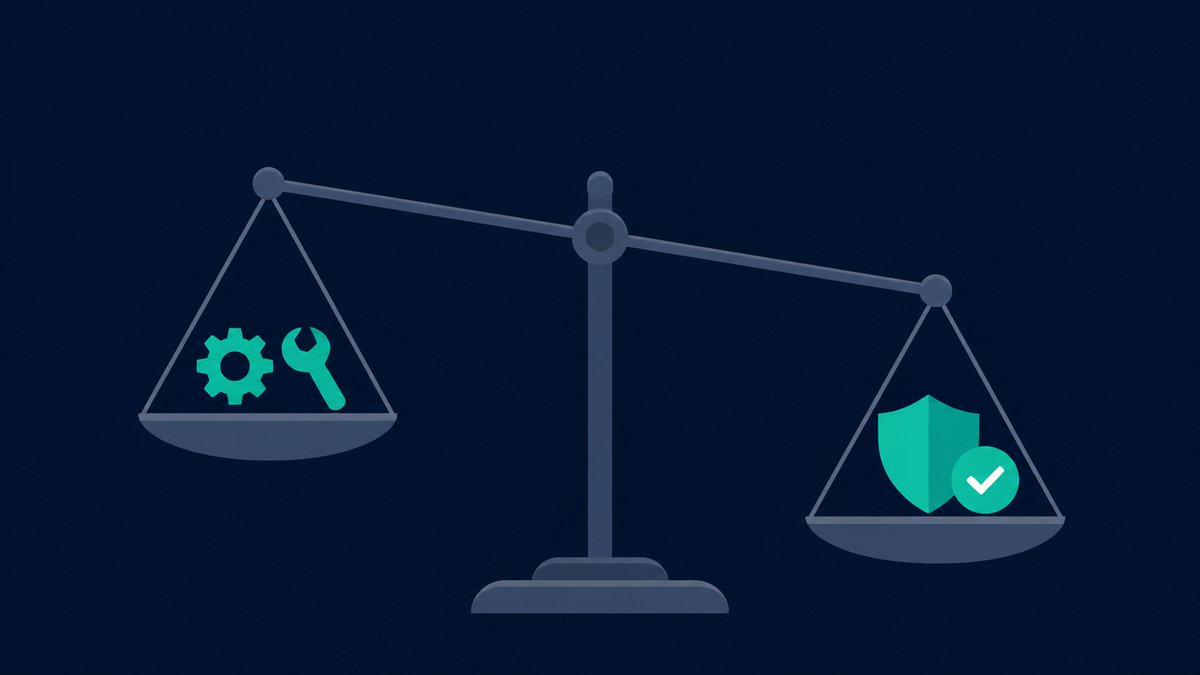
You lose:
- Automatic driver scans — Dell's website confirms the "detect my PC" button on the Drivers & Downloads page requires SupportAssist and will prompt you to reinstall it.
- Proactive hardware monitoring and failure predictions.
- The in-app warranty and support-ticket view.
You keep:
- Manual driver downloads — enter your Service Tag or model on Dell's Drivers & Downloads page and download anything, no app needed. Many Dell drivers also arrive through Windows Update on their own.
- Hardware diagnostics — the "SupportAssist Pre-Boot System Performance Check" is built into the BIOS. Press F12 at the Dell logo — it runs with the Windows app long gone.
- Your warranty. Removing software changes nothing about it.
Two real gotchas from Dell's own forums: first, the Dell Client Management Service is shared — if you also use the separate "Dell Update" app and remove that service, Dell Update breaks. Second, components called "SupportAssist OS Recovery" live in the BIOS/recovery partition, not in Windows, so they can seem to "come back" — they're a different (dormant) recovery feature, not the app reinstalling itself.
How to remove it cleanly (Dell's own method)
- Restart the PC first. Dell's clean-removal guide is explicit about this — it ensures no SupportAssist binaries are loaded.
- Close any open SupportAssist windows.
- Settings → Apps → Installed apps → uninstall, in this order where present: SupportAssist Remediation / OS Recovery Plugin for Dell Update, then SupportAssist itself.
- Restart again. Done — no registry surgery, no third-party uninstaller tools (Dell specifically advises against those).
While you're in the apps list, Dells usually carry more passengers — SmartByte, Dell Digital Delivery, promotional apps. I went through the whole list, app by app, in the complete Dell bloatware guide, and if you're clearing several machines the bulk-uninstall walkthrough saves the clicking.
My take
On my own machines: remove. I'd rather run driver checks manually twice a year from Dell's site than keep a privileged always-on agent whose bug history includes remote code execution. If you like the automatic monitoring and you're disciplined about updates, keeping it is a defensible choice too — just know that "installed and forgotten" is the one option that isn't.
I write these guides while building free Windows tools — RBS PC Cleaner has a bulk uninstaller and startup manager that make de-bloating a new laptop a ten-minute job. Free, offline, no account. Made by Rai, solo dev, Singapore.