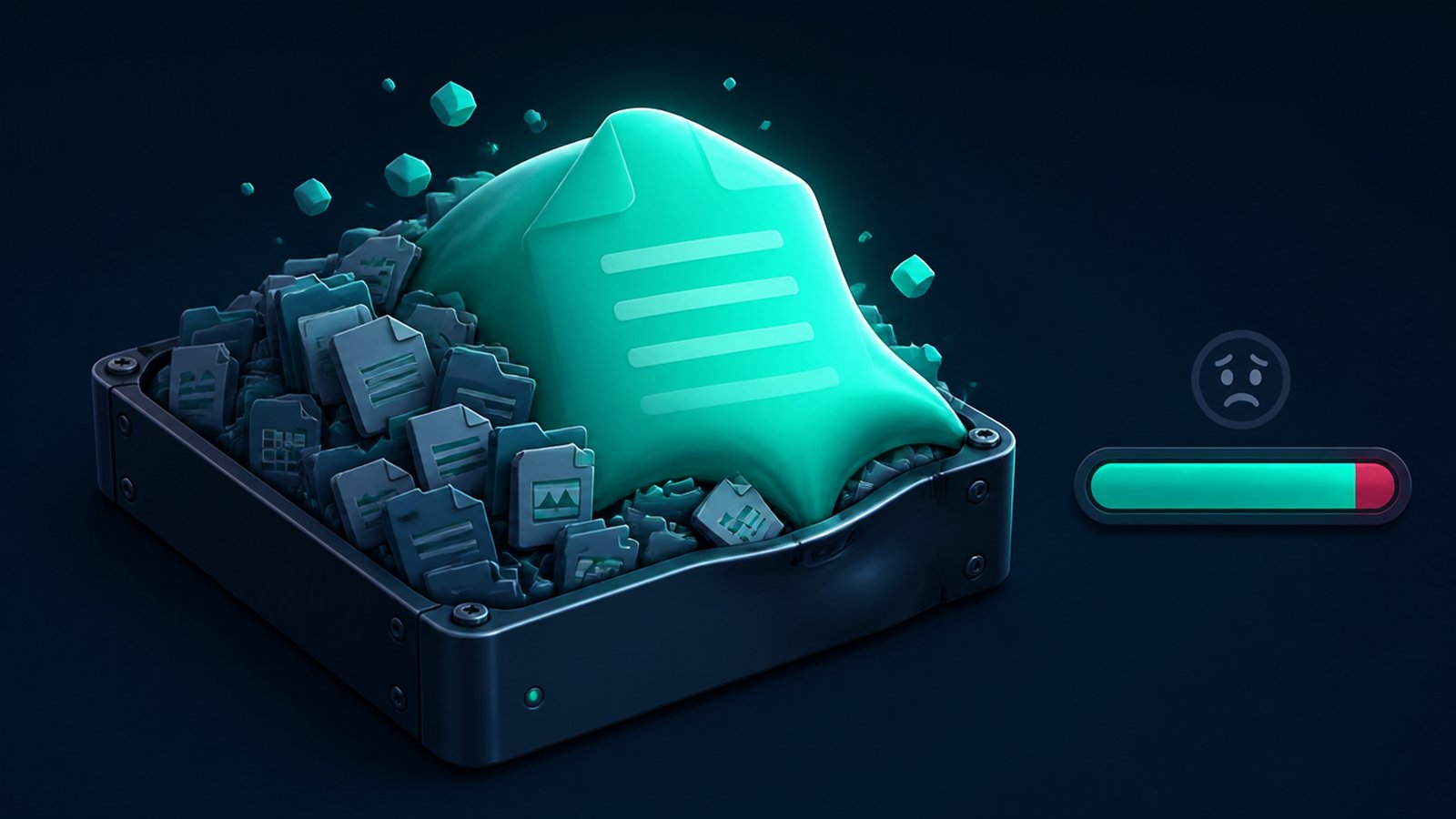
For months, people have been asking the same confused question on Microsoft's forums: where is my disk space going? Not to games, not to videos — to a single hidden system file that quietly grew to 50GB, 120GB, in one documented case over 300GB. July's Patch Tuesday update finally fixes the bug. What Microsoft doesn't tell you: installing the update does not give the space back. That part is on you, and doing it the wrong way breaks things.
Here's what happened, how to check if you're affected, and the safe cleanup.
The bug: a log file that never stopped growing
Windows has a service called Capability Access Manager — it's the bookkeeper that tracks which apps are allowed to use your camera, microphone, location and so on. It keeps its records in a small database under C:\ProgramData\Microsoft\Windows\CapabilityAccessManager, and like many databases it uses a "write-ahead log" — a temporary file named CapabilityAccessManager.db-wal where changes are staged before being folded into the main database.
That folding step (a "checkpoint") is what broke. On affected PCs the log never got folded in, so it just… grew. Forever. Windows Latest reports the file reaching up to 500GB in extreme cases, with one instance of 332GB accumulated in a single week. A healthy version of this file is about 1.6MB.
Some software made it worse by constantly poking the permission system — the Rainmeter WiFiStatus plugin and Dell's SmartByte utility are two named triggers. (If SmartByte rings a bell, it's one of the apps I covered in the Dell bloatware guide — one more reason it was worth removing.)
Check if your PC is affected (30 seconds)
Open File Explorer and paste this into the address bar:
C:\ProgramData\Microsoft\Windows\CapabilityAccessManager
Look at the size of CapabilityAccessManager.db-wal. Around 1-2MB: you're fine, close the tab, enjoy your day. Hundreds of MB or multiple GB: the bug hit you, keep reading.
If you can't see the file, ProgramData is hidden by default — turn on View → Show → Hidden items first. And if you'd rather see the whole disk picture at once, a disk-space analyzer (there's one built into my free RBS PC Cleaner) will surface any abnormally fat folder immediately — this bug is exactly the kind of thing those tools exist to catch.
Step 1 — Install KB5101650 first
The July 14 cumulative update — KB5101650, build 26100.8875 for 24H2 or 26200.8875 for 25H2 — contains the checkpoint fix. Settings → Windows Update → install, reboot. This must come first: clean up before patching and the file simply starts growing again.
Step 2 — Reclaim the space, the safe way
⚠ Don't just delete the .db-wal file. Multiple reports confirm that removing only the log file while the service is running can temporarily break Wi-Fi network discovery, the Settings app, and app permissions. Stop the service first, then clear the folder.
- Press Win + R, type
services.msc, Enter. - Find Capability Access Manager Service → right-click → Stop.
- In File Explorer, open the
CapabilityAccessManagerfolder from above and delete its contents. - Restart the PC. Windows rebuilds a fresh database at its normal ~1.6MB size, and with the patch installed it stays that way.
After the restart, expect Windows to re-ask a few permission questions (camera, mic) the first time apps use them — that's the rebuilt database doing its job, not a problem.
What else came in July's update
This was a big one — 571 security fixes per BleepingComputer, roughly four times last July's count — plus point-in-time system restore reaching broad rollout and quieter redesigned Widgets. Two things worth knowing:
- Some Dell laptops were blocked from getting the update — an incompatibility with an Intel power-management driver caused shutdowns, heat and battery drain, so Microsoft held the update back on affected machines and shipped a follow-up fix (KB5121767, July 18). If your Dell shows no July update yet, that's why — it sorts itself out, don't force it.
- Windows 11 24H2 Home and Pro stop getting updates October 13, 2026. If you're still on 24H2, plan the move to 25H2 in the next few months — I'll cover that jump when the time is closer.
If your update won't install at all, that's usually a different disease — see my update-failure troubleshooting guide for the fix sequence.
Bottom line
Check the folder — it takes 30 seconds and the payoff can be enormous. Patch first, stop the service, clear the folder, restart. And if a hidden system file can quietly eat 300GB, it's a good argument for glancing at a disk analyzer every couple of months: the earlier you see something bloating, the less drama it costs you.
I build free Windows tools and write these guides from what actually lands in my inbox. RBS PC Cleaner (junk, caches, disk analyzer), RBS Optimizer Pro (startup, performance), RBS PDF Editor — free, offline, no accounts. Made by Rai, solo dev, Singapore.